

What is a Plugin?
A plugin owns one or more message types. It tells the UI Kit:- How to render the message as a bubble in the message list
- What context menu options to show when a user hovers/long-presses a message
- What preview text to display in the Conversations list subtitle
Where Plugins Are Used
The Plugin Interface
Every plugin implements theCometChatMessagePlugin interface. Three members are required; everything else is optional and lets you override a specific bubble region or behavior.
For the view-slot methods (
render*View), return a ReactNode to override the region, null to suppress it, or undefined to keep the built-in default. The full TypeScript interface and the context object reference are documented in Creating a Custom Plugin.
How Plugin Resolution Works
When the UI Kit needs to render a message, it asks the Plugin Registry to find the right plugin:- If the message is deleted (
getDeletedAt() !== null), the Delete plugin handles it - Otherwise, the registry finds the first plugin whose
messageTypesincludes the message’s type AND whosemessageCategoriesincludes the message’s category - First match wins — plugin order matters
Adding Plugins
All default plugins are always included. To add your own custom plugins, pass them via theplugins prop on CometChatProvider. They are prepended before the defaults in the registry, so — because resolution is first-match — your custom plugin takes precedence over a default plugin that handles the same message type:
Built-in Plugins
These plugins are included automatically — no code configuration needed to render their message type. Each routes its message type to a bubble component; follow the component link for the full rendering behavior, props, and CSS.Extension-backed plugins require a Dashboard extension. The renderer for the four extension plugins — Polls (
extension_poll), Stickers (extension_sticker), Collaborative Document (extension_document), and Collaborative Whiteboard (extension_whiteboard) — ships with the UI Kit, but the messages themselves are only produced once the matching extension is enabled in the CometChat Dashboard. Enable each one before the composer can send it or the bubble can appear: Polls, Stickers, Collaborative Document, Collaborative Whiteboard.AI Plugin
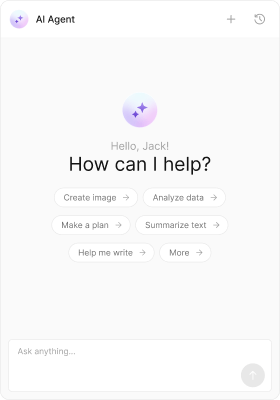
The AI plugin handles messages in theagentic category. It renders completed assistant responses (with markdown), tool call arguments and results (as formatted JSON), and a streaming bubble while the AI is generating. It is included by default — no installation or plugins configuration is required.
Message Types
Bubble components:
CometChatAIAssistantBubble, CometChatStreamMessageBubble, CometChatToolCallArgumentBubble, CometChatToolCallResultBubble. AI messages are system-generated and have no context menu. For the full chat experience, see AI Assistant Chat.